Transform Your TV into a Free Computer Monitor: A Step-by-Step Guide
Introduction
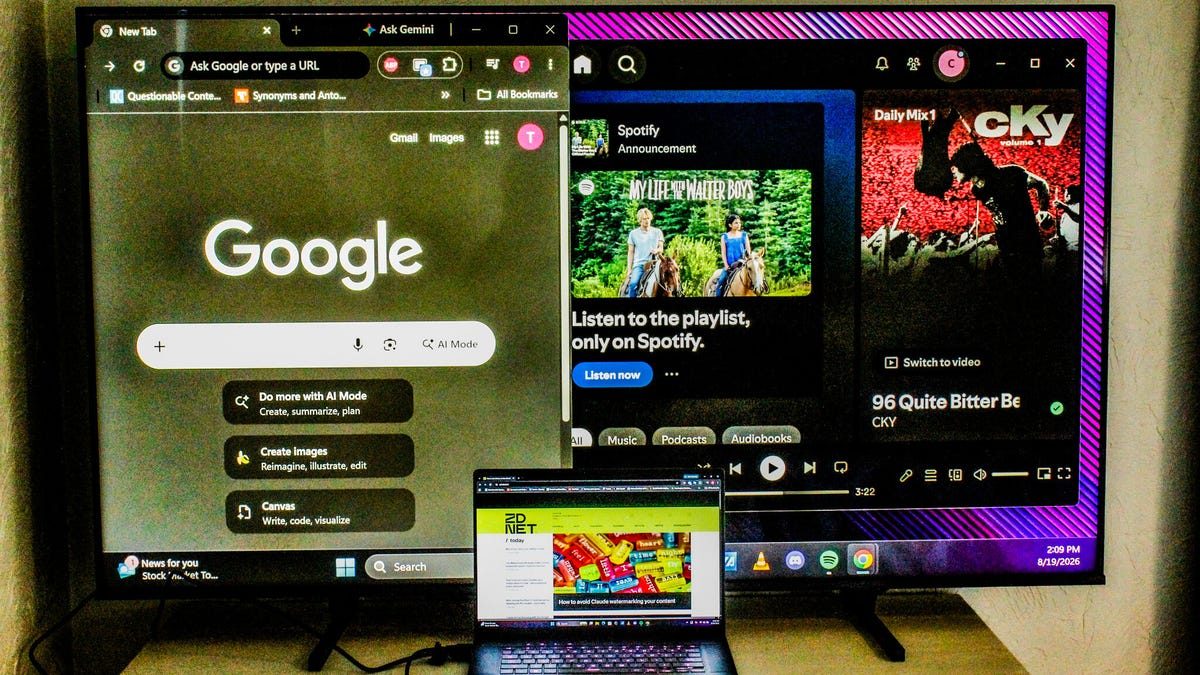
In today's tech-driven world, the cost of specialized computer monitors, particularly high-resolution or large-format displays for gaming and creative work, can be substantial. However, a readily available and often overlooked solution lies within many households: the television. This article provides a comprehensive guide on how to transform your smart TV into a functional computer monitor, offering a cost-effective alternative to purchasing new hardware. Whether you need a temporary display, an expanded workspace, or a dedicated screen for specific tasks, leveraging your TV can be a surprisingly simple and free endeavor.
Key Details
- Wired Connection (HDMI): The most straightforward method involves connecting your computer to your TV using an HDMI cable. Ensure you select the correct input source on your TV.
- Wired Connection (Adapters): For computers with Thunderbolt or DisplayPort outputs, a USB-C-to-HDMI or DisplayPort-to-HDMI adapter (typically $10-$15) may be required. Note that this connection still relies on HDMI's bandwidth limitations.
- Wireless Connection (Screen Mirroring): Most smart TVs support Apple AirPlay or Google Cast for wireless display mirroring. However, this method can introduce input lag and potential resolution issues due to data compression and transmission.
- Wireless Connection (Remote Access): Newer Samsung and LG TVs may offer remote PC access. This involves enabling a setting on your TV and using a dedicated app on your computer, linked via your IP address.
- Finding Your IP Address: Instructions are provided for Windows, Mac, ChromeOS, and Linux, detailing how to locate your device's IPv4 address through command prompts or system settings.
- Display Settings Configuration: Users will need to adjust display settings on their operating system to configure the TV as an extended or mirrored display, including arranging screen layouts and choosing scaling options.
- Resolution Matching: To ensure clarity and avoid blurry text or pixelation, it's crucial to match the computer's output resolution to your TV's native resolution, or select a compatible lower resolution (e.g., 1080p) if your computer does not support 4K.
- Picture Optimization: Utilizing a TV's 'PC Mode' or 'Game Mode' can significantly reduce input lag and improve refresh rates. These modes often include features like automatic low latency and VRR support.
Background
The evolution of display technology has led to televisions boasting impressive specifications, often mirroring or exceeding those found in dedicated computer monitors. Features like 4K resolution, HDR support, and large screen sizes are now commonplace in many TV models. This convergence of capabilities makes repurposing a TV as a monitor a technically feasible and economically sensible option. While dedicated monitors offer optimized performance for specific tasks like high-frequency gaming or precise color grading, the cost-benefit analysis often favors using a TV for general computing, media consumption, or even as a secondary display.
“The bottom line is that you can get a lot more screen real estate for a lot cheaper by using a TV rather than a purpose-made PC monitor.”
Impact Analysis
The primary impact of this technique is significant cost savings. High-end monitors, especially those with OLED panels, high refresh rates, and resolutions like 4K or 1440p, can range from several hundred to over a thousand dollars. For example, a premium 34-inch QD-OLED gaming monitor might cost around $750, offering advanced features but potentially capping at 1440p resolution. In contrast, a 32-inch 4K TV, such as the Hisense A4, can be purchased for approximately $110. While this TV might have a lower refresh rate (e.g., 60Hz), it provides a larger, higher-resolution display suitable for many users, especially for tasks like streaming or general productivity, where extreme refresh rates are less critical. This cost differential makes the TV-as-monitor solution particularly appealing to budget-conscious users, students, or those seeking to maximize their existing hardware.
Broader Context
This trend aligns with the broader movement towards flexible and multi-purpose technology. As devices become more integrated and capable, users are increasingly looking for ways to maximize the utility of their existing gadgets. The ability to seamlessly connect a TV to a computer reflects the growing importance of the home entertainment ecosystem and the blurring lines between computing, entertainment, and communication. Furthermore, it speaks to a growing awareness of sustainability and resourcefulness in technology consumption, encouraging users to extend the lifespan and functionality of their devices rather than constantly upgrading.
Future Outlook
As display technology continues to advance, the gap in performance and features between TVs and monitors is likely to narrow further. We can expect improvements in wireless connectivity protocols, reducing latency and improving resolution for screen mirroring. Additionally, operating systems may offer even more intuitive tools for managing multi-display setups involving TVs. The increasing adoption of standards like USB-C with DisplayPort Alternate Mode could also simplify wired connections. For consumers, this means more options and potentially lower costs for achieving large, high-quality display setups, whether through dedicated monitors or repurposed televisions.
Conclusion
Repurposing a TV as a computer monitor is a practical, accessible, and cost-effective solution for a wide range of users. By following simple connection steps and adjusting display settings, individuals can significantly expand their digital workspace without incurring the expense of a new monitor. While there might be minor trade-offs in performance compared to high-end dedicated monitors, the substantial cost savings and increased screen real estate make it an attractive option for everyday computing, media consumption, and even casual gaming. This approach empowers users to make the most of their technology investments and adapt their setups to their evolving needs.
Source: zdnet.com